Category: Hosting & VPS

The best VPS, cloud, and home server options for running OpenClaw 24/7.

  • Best Home Server Setup for OpenClaw in 2026

    Best Home Server Setup for OpenClaw in 2026

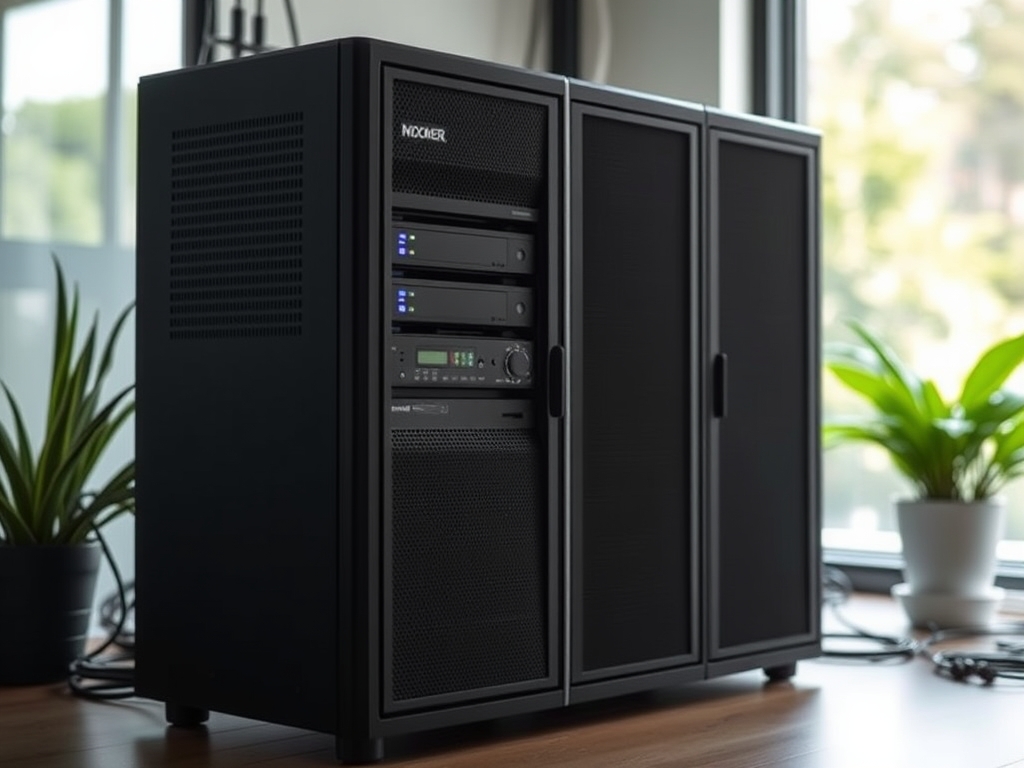
    Setting up a home server is one of the best decisions you can make for running OpenClaw – or any self-hosted software. A dedicated machine means your AI assistant is always on, always responsive, and doesn’t drain your laptop battery. Here’s exactly what you need.

    TL;DR – Best Home Server for OpenClaw

    The Mac Mini M4 (16GB RAM) is the best all-around home server for OpenClaw. It’s quiet, power-efficient, runs macOS natively, and handles local AI models without breaking a sweat.

    If you want a budget Linux option, the Raspberry Pi 5 (8GB) or a used Intel NUC are excellent alternatives.

    What Makes a Good Home Server for OpenClaw?

    • Always-on reliability – Your server needs to run 24/7 without overheating or crashing
    • Low power consumption – A server drawing 6W is much cheaper to run than one drawing 65W
    • Enough RAM – OpenClaw itself is lightweight, but local AI models (Ollama) need headroom
    • Quiet operation – Home servers live in living spaces; silence matters
    • Network connectivity – Wired Ethernet is strongly preferred for reliability

    Best Home Server Options – Ranked

    1. Mac Mini M4 – Best Overall

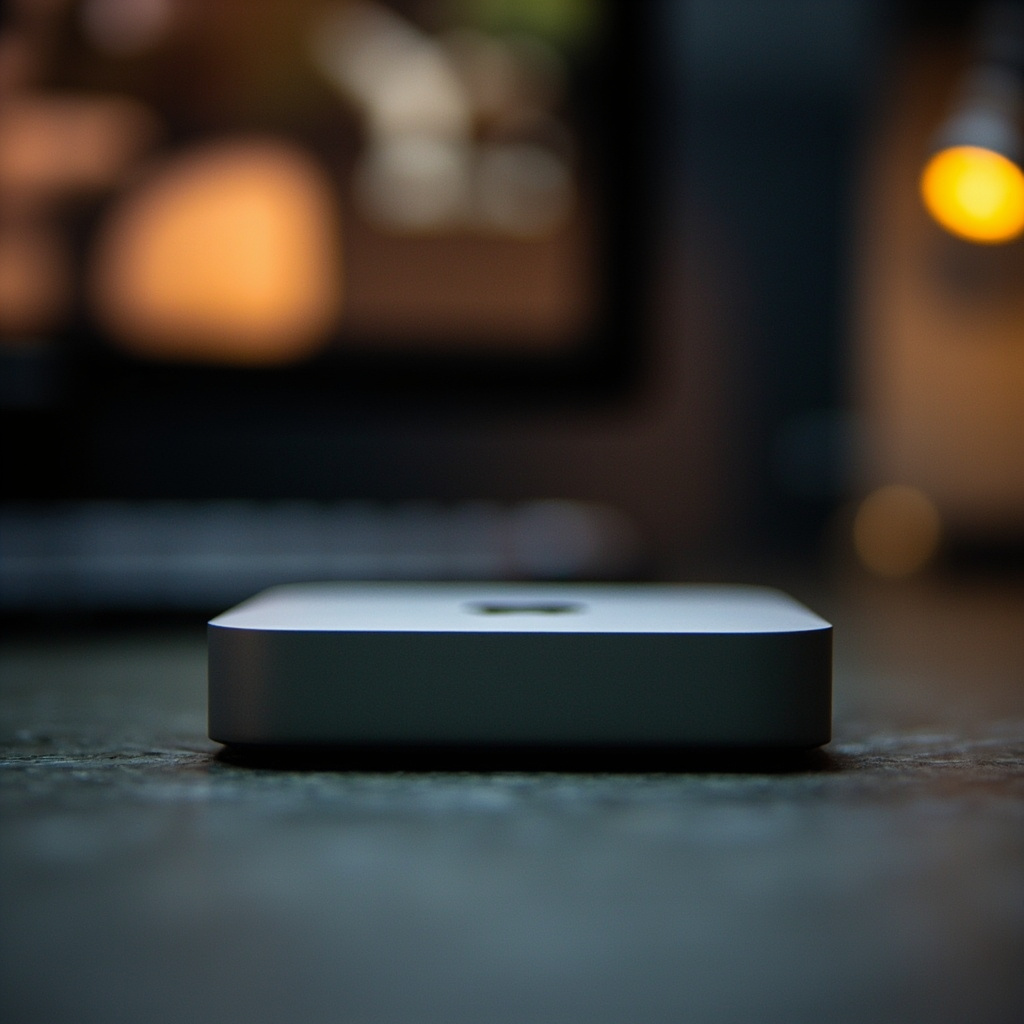
    The Mac Mini M4 is the gold standard for OpenClaw home servers. Apple Silicon’s efficiency means it uses as little as 6-12W at idle, it’s completely silent, and the unified memory architecture makes local AI inference surprisingly fast. macOS is also the most friction-free platform for OpenClaw.

    • RAM: 16GB recommended (8GB works but limits local AI model size)
    • Storage: 256GB base is fine; OpenClaw is tiny
    • Power draw: ~6-20W typical
    • Noise: Silent under normal load

    Check Mac Mini M4 price on Amazon ?

    2. Raspberry Pi 5 (8GB) – Best Budget Linux Option

    The Raspberry Pi 5 is a remarkable little machine. At 8GB RAM it can run OpenClaw plus lightweight Ollama models like Llama 3.2 3B. It draws under 5W, costs around , and has a massive community for troubleshooting. The main limitation is that large local AI models (7B+) will be slow.

    • RAM: 8GB (only Pi 5 model worth running local AI on)
    • Storage: Fast microSD (128GB+) or USB SSD for better reliability
    • Power draw: 3-5W typical
    • Noise: Silent or near-silent with passive cooling case

    Find Raspberry Pi 5 on Amazon ?

    3. Intel NUC (Used/Refurbished) – Best Value for x86

    A used Intel NUC from the NUC10 or NUC11 generation gives you full x86 Linux with 16-32GB RAM for -250. This is ideal if you want to run larger Ollama models or need maximum software compatibility. Not as power-efficient as Apple Silicon, but still reasonable at 15-25W.

    Browse Intel NUC deals on Amazon ?

    4. Old Laptop – Best “Use What You Have” Option

    Got a laptop collecting dust? It can make a decent home server. Laptops have built-in UPS (the battery), so they’re actually more resilient to power outages than desktops. The downsides: they’re not designed for 24/7 operation with the lid closed, and thermals can be a concern. Still, it’s a zero-cost way to start.

    5. Synology NAS – Best for NAS + Server Combo

    If you already run or are considering a Synology NAS, OpenClaw can run inside Docker on a Synology DS923+ or DS1522+. This combines your file server and AI assistant on one device. Not recommended as a primary setup for new users – complexity is higher.

    Synology NAS on Amazon ?

    Home Server Hardware Checklist

    Whatever hardware you choose, make sure you have:

    • ? Wired Ethernet – Wi-Fi is unreliable for 24/7 server use
    • ? UPS (Uninterruptible Power Supply) – Protects against power outages corrupting your data. A basic APC unit (~) is enough.
    • ? SSD Storage – Never run a home server on a spinning hard drive as the primary OS disk
    • ? Adequate ventilation – Don’t stuff your server in a closed cabinet

    Browse APC UPS units on Amazon ?

    How Much RAM Do You Actually Need?

    Use Case Recommended RAM
    OpenClaw only (cloud AI models) 4-8GB
    OpenClaw + small local model (3B) 8GB
    OpenClaw + medium local model (7B) 16GB
    OpenClaw + large local model (13B+) 32GB+

    Setting Up OpenClaw on Your Home Server

    Once you have your hardware:

    1. Install the OS – macOS, Ubuntu 22.04, or Raspberry Pi OS (64-bit)
    2. Install Node.js – v18 or higher required
    3. Run the OpenClaw installernpm install -g openclaw
    4. Configure auto-start – systemd on Linux, Login Items on macOS
    5. Set up remote access – OpenClaw’s built-in gateway handles this, or use Tailscale

    Full installation guides:

    Frequently Asked Questions

    Can I run OpenClaw on a Raspberry Pi 4?

    Yes, but the 4GB version will struggle if you try to run local AI models. For OpenClaw alone (using cloud APIs), it works fine. The Pi 5 8GB is significantly better if you’re buying new.

    Do I need a GPU for my home server?

    No. OpenClaw itself doesn’t use a GPU. If you want to run local AI models (Ollama), a GPU helps but isn’t required – small models run fine on CPU.

    What’s the cheapest home server setup that works?

    A Raspberry Pi 5 (8GB) with a quality microSD card runs OpenClaw perfectly for about -100 in hardware. Add a small USB SSD for better reliability and you’re set.

    Should I use a VPS instead of a home server?

    VPS is easier to set up and always online without hardware management. Home server gives you more RAM for local AI, more storage, and no monthly fees after the initial cost. Both are valid – see our Best Hosting for OpenClaw guide for VPS recommendations.

    Frequently Asked Questions

    What are the essential hardware components for an OpenClaw home server in 2026?

    Focus on a modern multi-core CPU (e.g., AMD Ryzen or Intel Core Ultra), 32GB+ DDR5 RAM, fast NVMe SSDs for the OS and applications, and a powerful GPU (NVIDIA/AMD) if OpenClaw utilizes compute acceleration. Prioritize energy efficiency.

    Which operating system is best suited for an OpenClaw home server setup?

    Linux distributions like Ubuntu Server or Debian are highly recommended for their stability, performance, and extensive support for server applications and containerization (Docker/Podman). They provide an excellent foundation for OpenClaw’s operational needs.

    How important is future-proofing when building an OpenClaw home server?

    Future-proofing is crucial. Invest in modular hardware with upgrade paths (RAM, storage, potentially CPU sockets) and choose open-source software for long-term support. Prioritizing energy efficiency also ensures relevance and cost-effectiveness over time.

    Written by: Alex Torres, Editor at OpenClaw Resource

    Last Updated: May 2026

    Our Editorial Standards | How We Review Skills | Affiliate Disclosure

    Need to protect your home server from power outages? See our guide to the best UPS for home server protection →
  • Best Cloud Providers for OpenClaw in 2026: DigitalOcean vs Vultr vs Hetzner

    Best Cloud Providers for OpenClaw in 2026: DigitalOcean vs Vultr vs Hetzner

    Running OpenClaw in the cloud means your AI agent is always available, doesn’t drain your laptop battery, and can be accessed from anywhere. Three cloud providers stand out in 2026: DigitalOcean, Vultr, and Hetzner. Here’s an honest comparison.

    DigitalOcean — Best Overall

    The go-to for most OpenClaw users. Clean dashboard, excellent documentation, strong community, and generous new user credits. The $6/month Basic Droplet (2GB RAM, 50GB SSD) handles OpenClaw comfortably.

    New users get $200 in free credits — that’s over 2 years of hosting at the entry tier.

    Get started with DigitalOcean →

    Vultr — Best Global Coverage

    32 data center locations — more than any other provider on this list. Vultr’s High Frequency instances offer better CPU performance per dollar than comparable DigitalOcean tiers. If you need a server in a specific region (Johannesburg, Osaka, Seoul), Vultr likely has it.

    Try Vultr →

    Hetzner — Best Value in Europe

    Hetzner offers extraordinary value for European users. Their CAX11 ARM instance (4GB RAM, 2 vCPUs) costs around €3.79/month — roughly half the price of comparable US providers. Latency from North America is higher, but for European users it’s the clear price winner.

    Quick Comparison

    • Best for beginners: DigitalOcean (cleanest onboarding, best docs)
    • Best value globally: Hetzner (Europe) or Vultr (worldwide)
    • Best free trial: DigitalOcean ($200) or Vultr (up to $250 promotional)
    • Best performance per dollar: Vultr High Frequency

    Recommended Starting Configuration

    For most users: Ubuntu 22.04 LTS, 2GB RAM, 50GB SSD, nearest datacenter region. This handles OpenClaw with room to spare. Upgrade to 4GB if you plan to run browser automation tasks or multiple simultaneous operations.

    Start with DigitalOcean — $200 free →

    🛒 Recommended: Automation Business Book | Productivity Desk Mat

    Written by: Alex Torres, Editor at OpenClaw Resource

    Last Updated: May 2026

    Our Editorial Standards | How We Review Skills | Affiliate Disclosure

    Need to protect your home server from power outages? See our guide to the best UPS for home server protection →

  • OpenClaw on a Mac Mini: Complete Setup Guide 2026

    OpenClaw on a Mac Mini: Complete Setup Guide 2026

    The Mac Mini is one of the best machines for running OpenClaw. It’s quiet, power-efficient, runs macOS natively, and has enough power to run local AI models alongside OpenClaw if you want. Here’s the complete setup from scratch.

    What You’ll Need

    • Mac Mini (M2 or M4 recommended — check current price)
    • macOS 13 Ventura or later
    • A messaging channel (Telegram bot is easiest)
    • About 30 minutes

    Step 1: Install Homebrew

    /bin/bash -c "$(curl -fsSL https://raw.githubusercontent.com/Homebrew/install/HEAD/install.sh)"

    Step 2: Install Node.js

    brew install node

    Step 3: Install OpenClaw

    npm install -g openclaw

    Step 4: Run Setup

    openclaw setup

    Follow the prompts to connect your Telegram bot (or other channel) and configure your AI provider.

    Step 5: Start OpenClaw

    openclaw start

    Step 6: Run as a Background Service

    To keep OpenClaw running 24/7 and restart automatically after reboots:

    openclaw service install
    openclaw service start

    Power Settings

    Go to System Settings > Energy > and disable “Put hard disks to sleep when possible” and set the Mac to never sleep. This ensures OpenClaw stays responsive at all times. The Mac Mini uses about 15W at idle — roughly $1-2/month in electricity.

    Remote Access

    Enable Screen Sharing (System Settings > General > Sharing) so you can access your Mac Mini remotely if needed. For secure remote access from outside your home network, Tailscale is the cleanest solution.

    Written by: Alex Torres, Editor at OpenClaw Resource

    Last Updated: May 2026

    Our Editorial Standards | How We Review Skills | Affiliate Disclosure

    Need to protect your home server from power outages? See our guide to the best UPS for home server protection →

  • DigitalOcean vs Vultr for OpenClaw: Honest 2026 Comparison

    DigitalOcean vs Vultr for OpenClaw: Honest 2026 Comparison

    Welcome back to OpenClaw Resource! In the rapidly evolving landscape of AI assistants, choosing the right infrastructure for your OpenClaw deployment is more critical than ever. As we look ahead to 2026, the demands on our AI systems—from rapid inference to scalable model hosting and low-latency user interactions—continue to grow. Today, we’re diving deep into two titans of the cloud hosting world: DigitalOcean and Vultr, evaluating which platform offers the best home for your OpenClaw instances.

    This isn’t just a spec sheet comparison; it’s a practical guide for developers. We’ll explore their offerings, scrutinize pricing, and highlight real-world scenarios where each provider shines, complete with command-line snippets and configuration insights.

    OpenClaw’s Infrastructure Needs in 2026

    Before we pit these providers against each other, let’s define what OpenClaw, as a modern AI assistant, typically requires from its underlying infrastructure. In 2026, we anticipate even more sophisticated models, demanding:

    • CPU Performance: While GPUs are crucial for training, inference for many OpenClaw models (especially smaller, optimized ones or those leveraging advanced quantization techniques) heavily relies on strong CPU performance for quick response times.
    • Ample RAM: Loading large language models (LLMs) and their associated embeddings into memory is RAM-intensive. A minimum of 2GB-4GB is a starting point, but production systems often demand 8GB, 16GB, or even more.
    • Fast Storage (SSD): Quick loading of models, logs, and user data necessitates NVMe SSDs or equivalent high-performance storage.
    • Network Throughput: For fetching external data, integrating with other APIs, or serving a large user base, reliable and fast network I/O is essential.
    • Global Reach: To minimize latency for a distributed user base, having data centers closer to your users is a significant advantage.
    • Cost-Efficiency: Running AI services can be expensive. Maximizing performance per dollar is always a priority.
    • Developer Experience: Ease of deployment, robust APIs, CLI tools, and clear documentation accelerate development and troubleshooting.

    With these criteria in mind, let’s examine DigitalOcean and Vultr.

    DigitalOcean for OpenClaw: The Developer’s Friendly Giant

    DigitalOcean has long been lauded for its simplicity, developer-centric approach, and clean user interface. For OpenClaw users, especially those new to VPS hosting or small to medium-sized teams, DigitalOcean offers a compelling package.

    Key Offerings & Instance Types

    DigitalOcean’s core offering, the “Droplet,” comes in several flavors suitable for OpenClaw:

    • Basic Droplets: Good for personal OpenClaw instances, testing, or small-scale deployments. They offer a balance of CPU, RAM, and SSD.
      • *Example:* The $12/month (current 2024 pricing, expect similar for 2026) Droplet with 2 vCPUs, 4GB RAM, and 80GB SSD provides a solid baseline for a moderately sized OpenClaw model.
    • General Purpose Droplets: For more demanding OpenClaw workloads requiring a better CPU-to-RAM ratio, these are a step up. They balance compute, memory, and local NVMe SSD.
    • CPU-Optimized Droplets: When your OpenClaw instance is heavily CPU-bound (e.g., intensive inference with complex models), these Droplets provide dedicated vCPUs, ensuring consistent high performance. This is often the sweet spot for production OpenClaw inference.

    Beyond Droplets, DigitalOcean provides “Spaces” (S3-compatible object storage for models, logs, and data), Managed Databases (PostgreSQL, MySQL, Redis for user data or knowledge bases), and Load Balancers for scaling OpenClaw across multiple instances.

    Ease of Use & Developer Experience

    DigitalOcean truly shines here. Its dashboard is incredibly intuitive, making provisioning a new Droplet for OpenClaw a matter of clicks. The documentation is extensive and well-written, guiding you through common tasks. For automation, their API and doctl CLI tool are robust.

    # Example: Provisioning a DigitalOcean Droplet for OpenClaw via doctl
    doctl compute droplet create \
      --image ubuntu-22-04-x64 \
      --size s-2vcpu-4gb \
      --region nyc1 \
      --ssh-keys <YOUR_SSH_KEY_ID> \
      --tag openclaw-staging \
      openclaw-staging-01
    
    # After provisioning, SSH in and set up OpenClaw
    ssh root@<YOUR_DROPLET_IP>
    sudo apt update && sudo apt install -y python3-pip git
    git clone https://github.com/openclaw/core.git /opt/openclaw
    cd /opt/openclaw
    pip install -r requirements.txt
    python3 main.py --config config_staging.yaml
    

    Welcome Credit

    DigitalOcean traditionally offers a generous welcome credit (often $200 for 60 days). This is invaluable for experimenting with OpenClaw, trying different model sizes, or even launching a small production instance without immediate financial commitment.

    Vultr for OpenClaw: The Performance and Global Coverage Champion

    Vultr positions itself as a high-performance cloud provider with an impressive global footprint and competitive pricing, especially for raw compute power. For OpenClaw deployments that demand peak CPU performance, low global latency, or strict cost optimization, Vultr is a strong contender.

    Key Offerings & Instance Types

    Vultr’s virtual machine instances are primarily known as “Cloud Compute” (VC2) and “High Frequency Compute.”

    • Cloud Compute (VC2): Vultr’s standard offering, providing a good balance similar to DigitalOcean’s Basic Droplets. They are cost-effective for general OpenClaw workloads.
    • High Frequency Compute: This is where Vultr truly differentiates itself for AI workloads. These instances feature the latest generation Intel or AMD CPUs with higher clock speeds and dedicated resources, coupled with NVMe SSDs. For CPU-bound OpenClaw inference, High Frequency instances often deliver significantly better performance per dollar than standard offerings.
  • How to Deploy OpenClaw on DigitalOcean in 10 Minutes

    How to Deploy OpenClaw on DigitalOcean in 10 Minutes

    How to Deploy OpenClaw on DigitalOcean in 10 Minutes

    Getting your own AI assistant backend running in the cloud can feel like a daunting task, but it doesn’t have to be. OpenClaw is designed to be a flexible, self-hostable gateway for various AI models, and DigitalOcean offers one of the quickest and most cost-effective ways to get it deployed. Not only is their platform developer-friendly, but new users often get a generous credit – currently $200 – which is more than enough to run an entry-level OpenClaw instance for over two years!

    This guide will walk you through setting up OpenClaw on a DigitalOcean Droplet, from provisioning your server to ensuring it runs reliably 24/7, and even adding a layer of professional polish with a custom domain and SSL. While the core setup can be incredibly fast, we’ll also cover some best practices that will take a little longer but are well worth the effort for a production-ready system.

    Setting Up Your DigitalOcean Account and Claiming Credits

    First things first, you’ll need a DigitalOcean account. If you don’t have one, head over to DigitalOcean’s Droplet page or simply sign up at their main site. Look for promotions offering free credits. As of writing, new users can often claim $200 in free credits, valid for 60 days. This is a fantastic deal, providing ample runway to experiment with OpenClaw without incurring immediate costs.

    Once your account is active and credits are applied, you’re ready to provision your first server, or “Droplet” in DigitalOcean’s terminology.

    Provisioning Your OpenClaw Droplet

    From your DigitalOcean dashboard, click the green “Create” button in the top right corner, then select “Droplets.”

    • Choose an image: We recommend Ubuntu 22.04 LTS (Long Term Support). It’s a stable, widely supported Linux distribution, making troubleshooting easier if you ever run into issues.
    • Choose a plan: For OpenClaw, a basic plan is usually sufficient for personal use or light traffic. Select the Basic plan and opt for the cheapest tier: $6/month (or $0.009/hour) which typically includes 1 vCPU, 2GB RAM, and 50GB SSD disk. This provides plenty of resources for OpenClaw itself. If you anticipate heavy usage or integrating with local models (though we’re not covering that here), you might consider a more powerful option later.
    • Choose a datacenter region: Select a region closest to you or your primary users. This minimizes network latency, leading to a snappier experience when interacting with your OpenClaw instance. For example, if you’re in Europe, choosing “Frankfurt” or “London” would be ideal.
    • Authentication: This is a critical security step. Choose SSH keys. If you don’t have one, DigitalOcean will guide you through creating one. For Linux/macOS users, you can generate a key pair with ssh-keygen -t rsa -b 4096 and then copy the public key (e.g., `~/.ssh/id_rsa.pub`) into the DigitalOcean interface. This method is far more secure and convenient than password authentication.
    • Finalize and Create: Give your Droplet a hostname (e.g., openclaw-gateway-01). You can skip backups for now to save costs, but consider them for production. Click “Create Droplet.” Your Droplet will be provisioned in about a minute. Note down its public IPv4 address.

    Connecting to Your Droplet via SSH

    Once your Droplet is ready, you’ll see its public IP address in your DigitalOcean dashboard. Open your terminal or command prompt and connect to it using SSH. Since we used SSH keys, you won’t need a password.

    ssh root@YOUR_DROPLET_IP_ADDRESS

    Replace YOUR_DROPLET_IP_ADDRESS with the actual IP. The first time you connect, you might be asked to confirm the authenticity of the host. Type `yes` and press Enter.

    You are now logged in as the `root` user. While convenient for quick setup, in a true production environment, you’d typically create a new, less privileged user and disable root login, but for a 10-minute deployment, `root` is fine.

    Preparing the Environment: Node.js Installation

    OpenClaw is a Node.js application, so we need to install Node.js and npm (Node

    Written by: Alex Torres, Editor at OpenClaw Resource

    Last Updated: May 2026

    Our Editorial Standards | How We Review Skills | Affiliate Disclosure

    Need to protect your home server from power outages? See our guide to the best UPS for home server protection →
  • Best Raspberry Pi for Running OpenClaw in 2026

    Best Raspberry Pi for Running OpenClaw in 2026

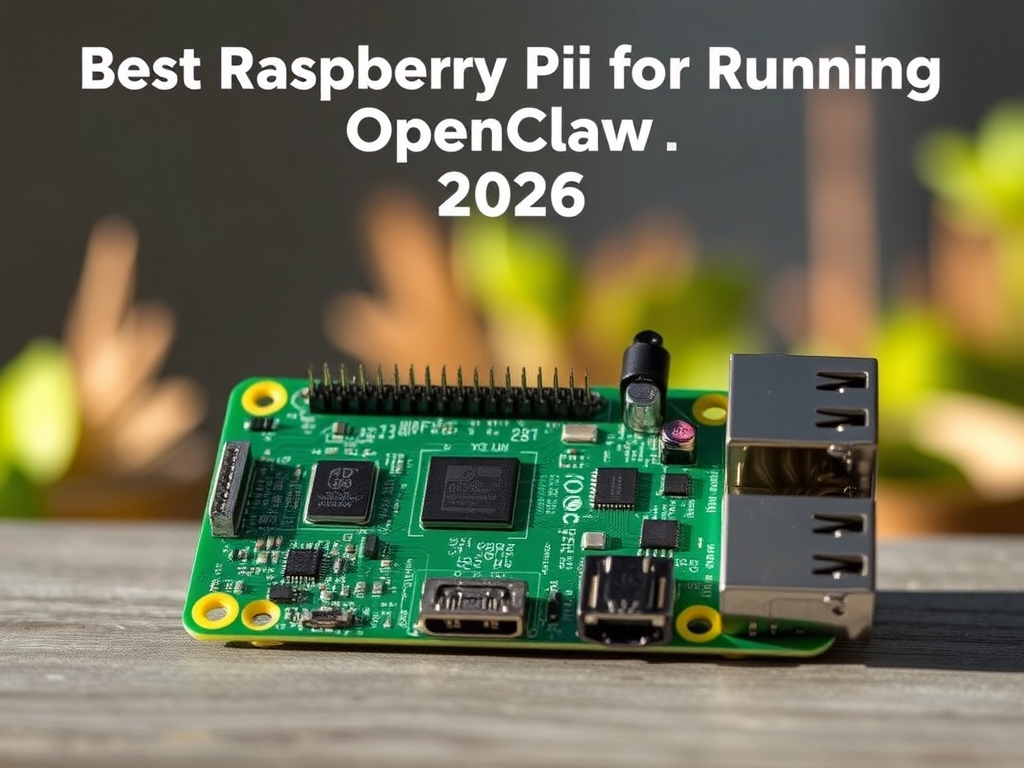
    The landscape of AI assistants is evolving rapidly, and the desire for local, private, and always-on operation is stronger than ever. For many developers and power users, the Raspberry Pi stands out as the ultimate platform for hosting services like OpenClaw. It’s not just about affordability; it’s about minimal power consumption, a tiny footprint, and the satisfaction of complete control over your AI assistant. As we look towards 2026, the Raspberry Pi 5 remains the undisputed champion for this role, offering a compelling blend of performance and efficiency.

    Running OpenClaw 24/7 at home for pennies a month isn’t just a dream; it’s a practical reality with a Raspberry Pi. A typical Pi 5 setup draws around 5-10W under load, translating to an annual electricity cost that’s negligible compared to a full-fledged desktop or even a cloud VM. This guide will walk you through the best Raspberry Pi options for OpenClaw in 2026, detailing hardware recommendations, crucial optimizations, and real-world use cases.

    Why Raspberry Pi for OpenClaw?

    Before diving into specific models, let’s reiterate why a Raspberry Pi is such an excellent choice for OpenClaw, especially for those who appreciate a hands-on, developer-centric approach:

    • Unmatched Power Efficiency: OpenClaw is often designed for continuous operation. A Pi sips power, keeping your utility bills low.
    • Cost-Effectiveness: The initial investment for a Pi, even with accessories, is significantly lower than most other dedicated server options.
    • Always-On Capability: Designed for headless operation, a Pi can run OpenClaw constantly without needing a monitor, keyboard, or mouse.
    • Local Control & Privacy: Keep your AI assistant’s operations entirely within your local network, enhancing privacy and reducing reliance on external services.
    • Developer-Friendly Ecosystem: The vast Raspberry Pi community and Debian-based Raspberry Pi OS provide a robust environment for development, debugging, and customization. OpenClaw, being Node.js-based, fits perfectly into this ecosystem.

    The Current Champion: Raspberry Pi 5 (The 2026 Standard)

    For anyone serious about running OpenClaw efficiently and reliably in 2026, the Raspberry Pi 5 is the clear choice. Released in late 2023, its significant architectural improvements over its predecessors make it exceptionally well-suited for Node.js workloads and general-purpose computing that OpenClaw demands.

    Key Advantages of Raspberry Pi 5 for OpenClaw:

    • Much Faster CPU: The Broadcom BCM2712 quad-core Cortex-A76 processor (2.4GHz) offers 2-3x the raw CPU performance of the Pi 4. This is critical for OpenClaw’s agent logic, task orchestration, and any local processing.
    • PCIe 2.0/3.0 Interface: This is a game-changer. The Pi 5 natively supports NVMe SSDs via an M.2 HAT (like the official NVMe Base or third-party options). This transforms I/O performance from “sluggish SD card” to “desktop-class,” which is vital for OpenClaw’s logging, data caching, and any file-intensive operations.
    • Improved RAM Speed & Options: Available with 4GB or 8GB of LPDDR4X RAM, running at a higher clock speed. More RAM means more headroom for concurrent OpenClaw agents, larger contexts, and additional services running alongside.
    • Enhanced I/O: Dual Gigabit Ethernet ports (one dedicated, one through the USB 3.0 controller), two USB 3.0 and two USB 2.0 ports provide ample connectivity.

    Recommended Raspberry Pi 5 Configuration:

    • Model: Raspberry Pi 5 (8GB RAM)
    • Storage: 250GB – 500GB NVMe SSD (PCIe Gen 3.0 compatible) with M.2 HAT. A 250GB Crucial P3 or WD Blue SN570 M.2 NVMe SSD will typically cost around $30-$50.
    • Power Supply: Official Raspberry Pi 27W USB-C Power Supply (crucial for stability, especially with NVMe).
    • Cooling: Official Raspberry Pi 5 Active Cooler or a good passive heatsink case. The Pi 5 can get warm under load, and throttling can impact performance.

    An 8GB Pi 5 will set you back approximately $80-$90 USD. Factoring in an NVMe SSD, HAT, power supply, and cooling, expect a total investment of $150-$200. This is an exceptional value for a dedicated, always-on AI assistant server.

    Real-World OpenClaw Use Cases on Raspberry Pi 5:

    On a Pi 5, OpenClaw truly shines. You can expect:

    • Rapid Task Execution: OpenClaw agents responding to triggers, performing web scrapes, API calls, and data processing with minimal latency.
    • Local LLM Orchestration: While the Pi 5 can’t run large LLMs directly, it can efficiently orchestrate interactions with local LLMs running on a more powerful machine (e.g., an `ollama` server on a desktop) or cloud-based endpoints. OpenClaw on the Pi acts as the intelligent controller.
    • Home Automation Hub: Integrating OpenClaw with your smart home ecosystem, processing sensor data, and making intelligent decisions based on various inputs.
    • Data Pipeline Management: Small-scale data collection, transformation, and storage tasks, leveraging the fast NVMe I/O.

    Still Relevant? Raspberry Pi 4 (The Budget Option)

    If you already own a Raspberry Pi 4, or if budget constraints are extremely tight, it can still run OpenClaw. However, it’s important to manage expectations regarding performance.

    Limitations of Raspberry Pi 4 for OpenClaw:

    • Slower CPU: The Cortex-A72 processor (1.5GHz/1.8GHz) is noticeably slower, particularly for CPU-intensive OpenClaw operations.
    • USB 3.0 Bottleneck for Storage: While the Pi 4 supports booting from a USB 3.0 SSD, it’s still limited by the USB overhead and shared bus, not offering the same raw throughput as the Pi 5’s native PCIe NVMe.
    • Heat: The Pi 4 can also run hot, necessitating good cooling.

    Recommended Raspberry Pi 4 Configuration:

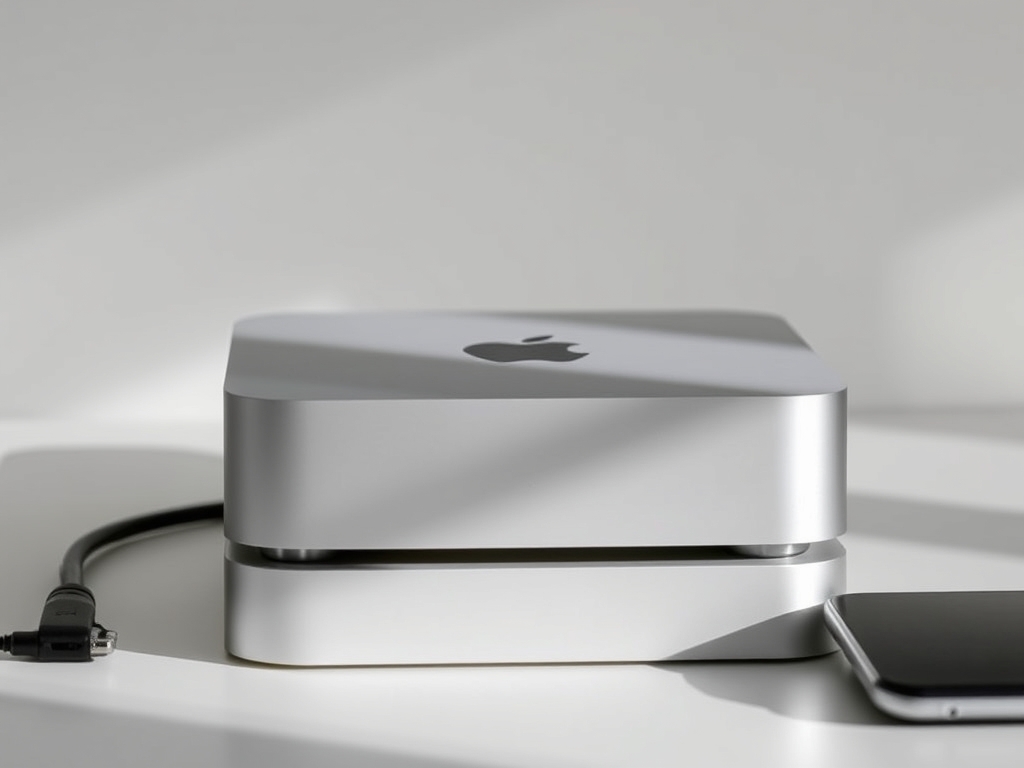
  • Best Mac Mini for Running OpenClaw in 2026

    Best Mac Mini for Running OpenClaw in 2026

    The Mac Mini in 2026: Your Future-Proof Home Server for OpenClaw

    The Mac Mini has firmly established itself as a top-tier choice for running AI workloads locally, and for good reason. It’s a powerhouse in a diminutive, quiet, and power-efficient package, perfectly at home tucked away on your desk or serving as a headless server. For developers and AI enthusiasts looking to run OpenClaw – our robust AI assistant framework – a Mac Mini offers an unparalleled balance of performance, native macOS support, and ease of use. But as we look ahead to 2026, what’s the “best” model to invest in for longevity and peak performance with OpenClaw and the ever-evolving landscape of local AI models?

    This article dives deep into selecting the ideal Mac Mini, considering the hardware demands of OpenClaw, integrating with local Large Language Models (LLMs) via tools like Ollama, and ensuring your setup is ready for the future. We’ll explore current and anticipated models, recommend configurations, and provide practical tips for getting OpenClaw up and running.

    Understanding OpenClaw’s Hardware Needs

    Before we jump into specific models, let’s break down what makes a Mac Mini excel for OpenClaw. OpenClaw, like many modern AI applications, thrives on specific hardware capabilities:

    • Unified Memory (RAM): This is arguably the most critical factor. Apple’s unified memory architecture means RAM is shared efficiently across the CPU, GPU, and Neural Engine. For loading and running large AI models (LLMs, vision models), you need ample memory. Swapping to disk will kill performance.
    • Neural Engine (NPU): Apple Silicon chips feature dedicated Neural Engines designed for accelerated machine learning tasks. OpenClaw and its underlying libraries (like Core ML, PyTorch with MPS) can leverage this for significantly faster inference and processing of AI-specific operations.
    • GPU Cores: While the Neural Engine handles many AI tasks, the integrated GPU cores are still vital for general parallel processing, especially for larger models or tasks that aren’t fully optimized for the NPU.
    • CPU Cores: Essential for orchestrating tasks, running the OpenClaw agent logic, managing system processes, and handling non-AI specific computations. More performance cores translate to snappier overall system responsiveness.
    • SSD Storage: Fast NVMe SSDs are crucial for quickly loading large AI models from disk into unified memory. Sufficient storage space is also necessary for multiple models, datasets, and the OpenClaw environment itself.

    The 2026 Mac Mini Landscape: Recommendations for OpenClaw

    By 2026, we anticipate a continued evolution of Apple’s M-series chips. While specific models and names are speculative, we can project based on current trends. For the purpose of this guide, we’ll consider the M4 series as our current benchmark for “best” and project what an “M6” might bring to the table.

    The Mac Mini M6 (Anticipated 2026 Flagship) — The Uncompromising Choice

    If Apple continues its two-year cadence for Mac Mini updates, a Mac Mini powered by an M6 chip could arrive by late 2025 or early 2026. This would represent the pinnacle of Apple Silicon for desktop machines at that time. We’d expect significant leaps in Neural Engine performance, potentially doubling or tripling the M4’s NPU capabilities, along with higher maximum unified memory configurations.

    • Expected Configuration: Look for models offering 32GB, 64GB, or even 128GB of unified memory. The NPU will likely feature 32+ cores, with a substantial increase in memory bandwidth.
    • Why it’s the Best: This machine would be an absolute beast for OpenClaw. You could comfortably run multiple, concurrent OpenClaw agent instances, alongside several large local LLMs (e.g., Llama 3 70B, multimodal models, or even fine-tuning smaller models) via Ollama, all without breaking a sweat. It offers the most headroom for future AI model growth and complex multi-agent workflows.
    • Real Use Case: A sophisticated personal AI assistant managing complex projects, autonomously researching topics, generating code, processing natural language queries, and interacting with local LLMs for privacy-sensitive tasks. Imagine running a local OpenClaw agent that uses a 70B parameter LLM for advanced reasoning, a local vision model for image understanding, and a local speech-to-text model, all simultaneously.
    • Anticipated Price: Expect to pay a premium for the top-tier configurations, likely starting around $1,299 for a base model and escalating to $2,500+ for 64GB+ RAM and 2TB+ SSD.

    The Mac Mini M4 (Current Best

    Written by: Alex Torres, Editor at OpenClaw Resource

    Last Updated: May 2026

    Our Editorial Standards | How We Review Skills | Affiliate Disclosure

    Need to protect your home server from power outages? See our guide to the best UPS for home server protection →
  • Best VPS for Running OpenClaw in 2026

    Best VPS for Running OpenClaw in 2026

    The landscape of AI assistants like OpenClaw is evolving rapidly, making them indispensable tools for developers and power users. While running OpenClaw locally offers immediate access, it comes with inherent limitations: your agent is only available when your machine is on, it drains local resources, and accessibility from different devices can be cumbersome. This is where a Virtual Private Server (VPS) shines. By hosting your OpenClaw instance on a VPS, you secure 24/7 availability, universal access, dedicated resources, and a stable environment. This guide will walk you through the best VPS options for running OpenClaw in 2026, offering practical notes, configuration examples, and real-world use cases to help you make an informed decision.

    Why a Virtual Private Server (VPS) for OpenClaw?

    For any serious OpenClaw user, moving beyond a local setup is a logical next step. A VPS provides several critical advantages:

    • Uninterrupted Availability: Your OpenClaw agent is always online, ready to respond to queries or execute tasks, regardless of your local machine’s status. This is crucial for automation, continuous monitoring, or integrations that expect a constant endpoint.
    • Global Accessibility: Access your OpenClaw instance securely via SSH or its web interface from any device, anywhere in the world. No more port forwarding on your home network or relying on your laptop being open.
    • Dedicated Resources: Unlike shared hosting, a VPS gives you guaranteed CPU, RAM, and storage. Your OpenClaw instance won’t compete with other applications for resources, ensuring consistent performance, especially for resource-intensive AI model inference.
    • Scalability & Flexibility: As your OpenClaw usage grows, or if you decide to run larger models or multiple agents, most VPS providers allow you to easily scale up your resources (CPU, RAM, storage) with minimal downtime.
    • Isolated Environment: A clean, predictable Linux environment means fewer dependency conflicts and easier management compared to

      Written by: Alex Torres, Editor at OpenClaw Resource

      Last Updated: May 2026

      Our Editorial Standards | How We Review Skills | Affiliate Disclosure

      Need to protect your home server from power outages? See our guide to the best UPS for home server protection →
  • Best Hosting for OpenClaw in 2026

    Best Hosting for OpenClaw in 2026

    Best Hosting for OpenClaw in 2026

    Running OpenClaw on your laptop works great for testing, but for a truly always-on AI assistant, you need a server that never sleeps. That means a VPS — a Virtual Private Server in the cloud that you rent by the month and control completely.

    This guide covers the best VPS hosting options for OpenClaw in 2026, what specs you actually need, and how to get set up quickly.

    Do You Actually Need a VPS?

    You don’t need one to use OpenClaw — but most serious users eventually move to a VPS. Here’s why:

    • Always-on: Your agent answers messages, runs scheduled tasks, and monitors things even while your laptop is closed
    • Reliability: No interruptions from your computer sleeping, rebooting, or running out of battery
    • Performance: A dedicated Linux server runs OpenClaw cleaner and faster than a shared home computer
    • Accessibility: Your agent is reachable from anywhere in the world, not just your home network

    The cost is low — as little as $4–$6/month — and the improvement in usefulness is significant.

    What Specs Does OpenClaw Need?

    OpenClaw is lightweight. The AI processing happens on Anthropic’s servers (via API), so your VPS just needs to handle the coordination layer:

    • CPU: 1 vCPU is plenty
    • RAM: 512MB minimum; 1GB recommended for comfortable operation
    • Storage: 10–20GB SSD is more than enough
    • OS: Ubuntu 22.04 LTS (most compatible, well-documented)
    • Bandwidth: Minimal — OpenClaw sends small API requests, not large files

    The cheapest tier at any major VPS provider will handle OpenClaw comfortably.

    Best VPS Providers for OpenClaw

    1. DigitalOcean — Best for Beginners

    DigitalOcean is the most beginner-friendly VPS provider available. Their “Droplets” (virtual machines) are easy to create, and their documentation is genuinely excellent.

    Key details:

    • Starting price: $4/month (512MB RAM, 10GB SSD, 500GB transfer)
    • One-click Ubuntu server creation
    • Excellent beginner guides and tutorials
    • Clean, intuitive control panel
    • Managed databases and other services available if you expand
    • Datacenter locations: US, EU, Asia, Australia

    Best for: First-time VPS users, people who want solid documentation and support, anyone starting with a minimal budget.

    Get started with DigitalOcean →

    2. Vultr — Best for Value and Speed

    Vultr offers some of the best performance-per-dollar in the VPS market. Their network is fast, their pricing is competitive, and they have an unusually large number of datacenter locations.

    Key details:

    • Starting price: $2.50/month (IPv6 only) or $3.50/month (IPv4) — the most affordable entry point
    • High-performance NVMe SSD storage
    • 25+ datacenter locations worldwide
    • Snapshot/backup features built in
    • Bare metal and high-frequency compute options for scaling
    • Clean API for automation

    Best for: Users who want the cheapest reliable option, developers comfortable with VPS management, anyone needing a specific geographic location.

    Get started with Vultr →

    3. Linode (Akamai Cloud) — Reliable and Established

    Linode has been around since 2003 and is now part of Akamai. It’s well-regarded for reliability and straightforward pricing. Not the cheapest, but very dependable.

    Key details:

    • Starting price: $5/month (1GB RAM, 25GB SSD)
    • Excellent uptime record
    • Good documentation and community
    • Managed Kubernetes available for advanced users

    Best for: Users who prioritize reliability and don’t mind paying a bit more.

    4. Hetzner — Best European Option

    Hetzner is popular in Europe for its exceptional price-to-performance ratio. Their datacenters are in Germany and Finland, plus they have US locations.

    Key details:

    • Starting price: €3.29/month (2GB RAM, 20GB SSD) — outstanding specs for the price
    • More RAM and storage than competitors at lower price points
    • Strong privacy reputation (German company, strict data laws)
    • Less beginner-friendly interface than DigitalOcean

    Best for: European users, privacy-conscious users, and anyone who wants maximum specs for minimum cost.

    Quick Comparison Table

    • DigitalOcean: $4/mo | 512MB RAM | Beginner-friendly | 14 locations | Sign up
    • Vultr: $3.50/mo | 512MB RAM | Best value | 25+ locations | Sign up
    • Linode: $5/mo | 1GB RAM | Most reliable | 11 locations
    • Hetzner: €3.29/mo | 2GB RAM | Best EU value | 5 locations

    Setting Up OpenClaw on a VPS: Quick Start

    Once you’ve created your VPS and have SSH access, the process is straightforward:

    1. Update the server: sudo apt update && sudo apt upgrade -y
    2. Install Node.js: curl -fsSL https://deb.nodesource.com/setup_20.x | sudo -E bash - && sudo apt-get install -y nodejs
    3. Install OpenClaw: npm install -g openclaw
    4. Run setup: openclaw init
    5. Install a process manager to keep OpenClaw running: npm install -g pm2
    6. Start with PM2: pm2 start openclaw -- start && pm2 save && pm2 startup

    With PM2, OpenClaw automatically restarts if it crashes or the server reboots.

    How Much Will It Cost Per Month?

    A typical OpenClaw setup running 24/7 on a small VPS costs:

    • VPS hosting: $3–$5/month
    • Anthropic Claude API (light personal use): $2–$8/month
    • Total: $5–$13/month

    That’s about the same as a Netflix subscription for a genuinely useful AI assistant that works around the clock.

    My Recommendation

    For most beginners: start with DigitalOcean. The $4/month Droplet is perfect for OpenClaw, and their tutorials will guide you through everything from SSH to firewall setup.

    For best value: Vultr gives you more locations and the lowest entry price. If you’re comfortable with basic Linux, this is the best bang for your buck.

    Ready to get your server running? See our complete OpenClaw setup guide for the full installation walkthrough.

    🛒 Recommended: Automation Business Book | Productivity Desk Mat

    Written by: Alex Torres, Editor at OpenClaw Resource

    Last Updated: May 2026

    Our Editorial Standards | How We Review Skills | Affiliate Disclosure

    Need to protect your home server from power outages? See our guide to the best UPS for home server protection →